


Customizing Menus in Stella Theme
Files: src/config/menu.<lang>.json, src/i18n/<lang>.json · Skill level: Beginner
Stella manages the header and footer menus in one file per language in the src/config directory: menu.en.json, menu.fr.json, and menu.ar.json.
In the Tina edition, edit Menus at /admin/: Header Primary, Footer Menu One, and Footer Menu Two. In the Sanity edition, edit the Menus document for each language in the Studio: Header menu, Footer column one, and Footer column two.
This file allows you to control:
- Header navigation (
headerPrimary) - Mega menus
- Dropdowns (and nested dropdowns)
- Footer columns (
footerMenuOne,footerMenuTwo)
For how the menu behaves, every field, and keyboard support, see Navigation.
Header Navigation
The headerPrimary list holds the items for your main navigation bar.
Example
{ "name": "Pages", "enable": true, "weight": 2, "hasChildren": true, "children": [ { "enable": true, "name": "Company", "url": "/company/", "weight": 0 }, { "enable": true, "name": "Features", "url": "/features/", "weight": 1 } ]}Key Properties
name: Menu label displayed in the header.url: Where the menu item links to.enable: Must betruefor the item to show. Set it tofalseto hide this item.weight: Controls ordering (see below).hasChildren: Set totruewhen the item opens a dropdown or submenu.hasMegaMenu: Set totrueto render a mega menu (see below).children: An array of submenu items. Submenus can themselves sethasChildrenfor nested dropdowns.badge: Optional visual badge (e.g., “NEW”) withenable,label,color, andtype.
Menu Order
Stella sorts the header menu by weight, with lower numbers first. This applies at every level: top-level items, dropdown links, and mega menu groups and links.
- Items with the same
weightstay in the order they have in the file. The top-level items ship with"weight": 0, so they show in file order. - An item with no
weightgoes after the items that have one.
To move an item, give the items different weights. In the Tina and Sanity editions, this field is called Order.
Badge Settings
You can highlight menu items using badges — small visual markers such as “NEW” or colored dots. A badge shows only when its enable is true.
Example:
{ "enable": true, "name": "Components", "url": "/components/", "weight": 0, "badge": { "enable": true, "label": "NEW", "color": "accent", "type": "text" }}enable: Set totrueto show the badge.label: Text displayed inside the badge (e.g.,"NEW"). Only used whentypeis"text".color: Visual style of the badge. Supported values:"accent","info","success","danger","dark".type: Choose"text"for a label or"dot"for a small indicator dot. Links inside a mega menu show text badges only.
Mega Menu Setup
To enable a mega menu, set hasMegaMenu and list groups of links in menus. You can add a photo card with cta, and a row along the bottom of the panel with bar.
Example
{ "enable": true, "name": "Features", "weight": 1, "hasMegaMenu": true, "cta": { "enable": true, "image": "/images/menu-cta.png", "title": "Gain Actionable Insights", "description": "Launch faster, grow smarter, and scale effortlessly.", "button": { "enable": true, "hoverEffect": "text-flip", "label": "Get A Free Trial", "url": "/contact/", "rel": "", "target": "" } }, "menus": [ { "enable": true, "name": "Capabilities", "weight": 0, "children": [ { "enable": true, "icon": "Focus", "name": "Real-Time Reporting", "description": "Monitor live data streams.", "url": "/features/", "weight": 0 }, { "enable": true, "icon": "Shield", "name": "Seamless Collaboration", "description": "Keep your team aligned.", "url": "/features/", "weight": 1 } ] }, { "enable": true, "name": "Explore", "weight": 1, "children": [ { "enable": true, "name": "Pricing", "url": "/pricing/", "weight": 0 } ] } ]}Footer Menus
The footer has two link columns, in the same file:
1.footerMenuOne
The first footer link column (Stella ships this as the “Company” column: About Us, Careers, Blog, etc.).
2.footerMenuTwo
The second footer link column (Stella ships this as the “Resources” column: Help Center, API Status, Community, etc.).
Each footer column is a list of objects like:
{ "enable": true, "name": "About Us", "url": "/company/", "weight": 0}The footer shows every item in a column, in the order of the file. It doesn’t read enable or weight, so to remove a footer link, delete it from the list.
How to Edit Menus
- Open the
menu.en.jsonfile insrc/config. - Locate the section you want to edit:
headerPrimary,footerMenuOne, orfooterMenuTwo. - Update the
name,url, orenablefields. - Save the file, and your dev server shows the change.
- Do the same in the menu file of every other language, such as
menu.fr.jsonandmenu.ar.json.
Disabling a Menu Item
To hide a header menu item without deleting it:
{ "enable": false, "name": "Career", "url": "/career/"}Update Footer Menu Titles
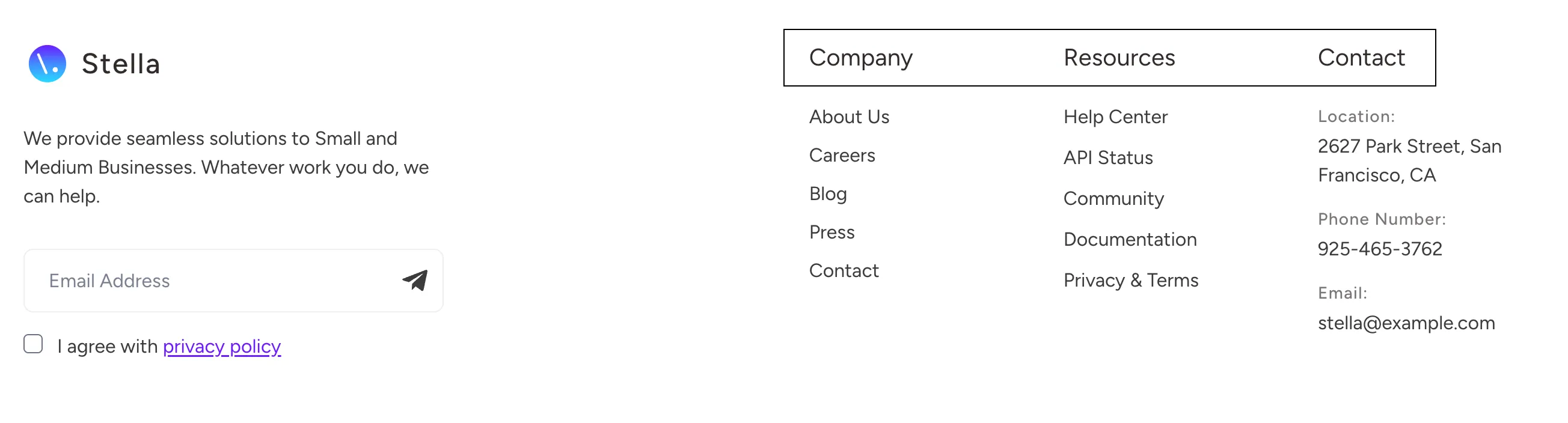
The footer has three column titles: Company, Resources, and Contact. You can customize these titles by editing your i18n language files.
Steps to Update
-
Open the file:
src/i18n/en.json -
Find the
footersection, which looks like this:"footer": {"colTitleOne": "Company","colTitleTwo": "Resources","colTitleThree": "Contact","description": "We provide seamless solutions to Small and Medium Businesses. Whatever work you do, we can help.","copyright": "Copyright © 2024 Stella. All Rights Reserved."} -
Modify the text values to suit your brand.
-
Update the same
footerentries in every other language file, such assrc/i18n/fr.jsonandsrc/i18n/ar.json, to keep the footer consistent for all users.
In the Tina and Sanity editions, these are under Footer in Interface labels. The address, phone, and email in the third column are under Contact Info there, or contactInfo in the same language files.