
Customizing Layouts
The Looka theme is structured with different sections that you can customize. Each page in the theme is made up of various sections. If you want to modify a specific section, you can find the layout and content files in the following folders:
- Layout files:
src/layouts/components/sections/ - Content files (Markdown):
src/content/sections/
For example, let’s say you want to remove the video part from the “About Us” section on the homepage. Below is a visual representation of this section:
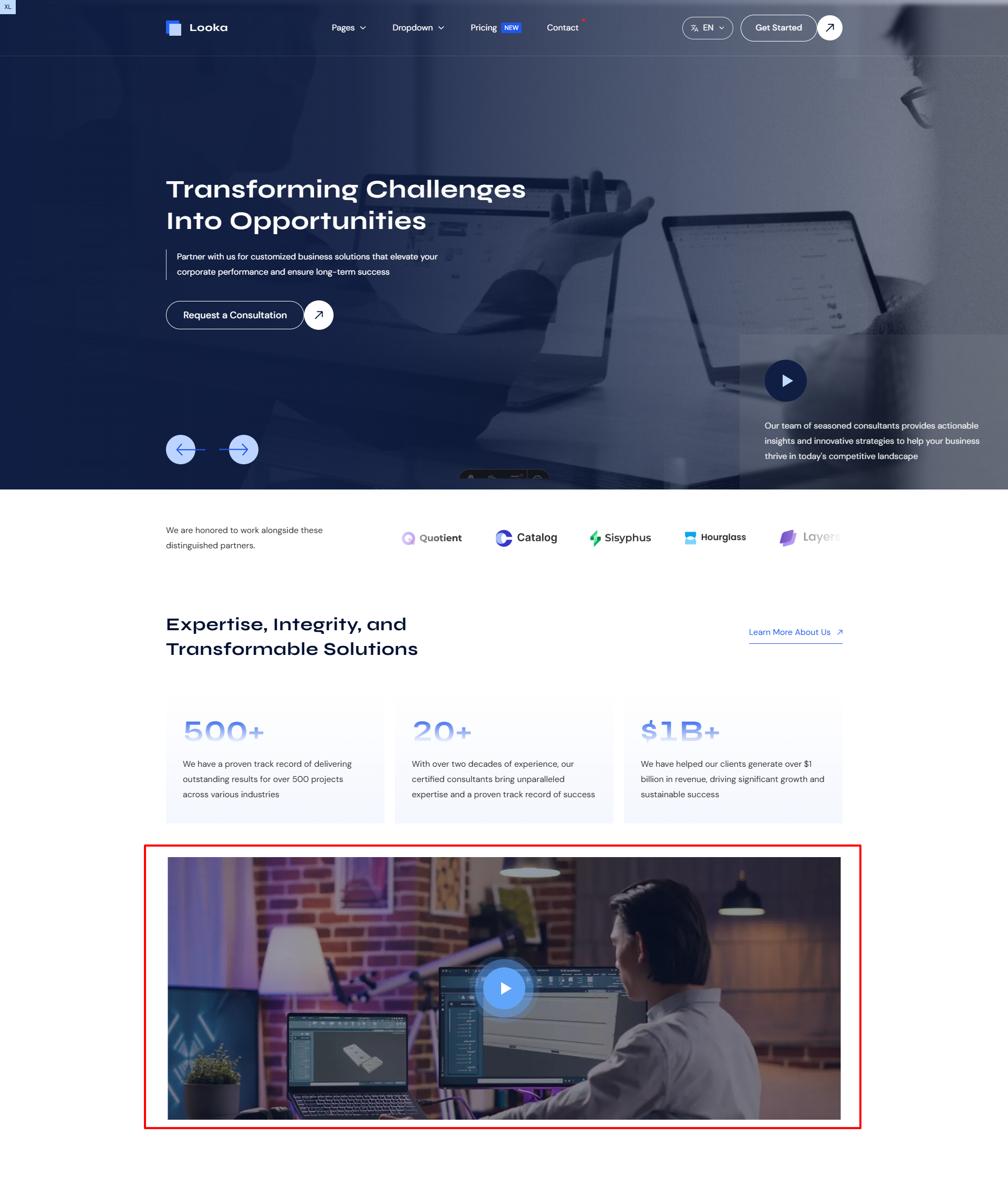
There are two ways to remove or disable this video part:
- Customizing the section’s Markdown file.
- Customizing the section’s Layout file (for developers).
Customizing the Section Markdown File
If you want to disable the video part of the “About Us” section using the Markdown file, follow these steps:
Step 1: Locate the page layout file
Start by finding the page layout file that includes the “About Us” section. For example, the homepage layout file is located at:
src/pages/[...lang]/index.astro
For other pages like blog or case studies, the corresponding layout files are:
src/pages/[...lang]/blog/index.astrosrc/pages/[...lang]/case-studies/index.astro
Step 2: Find the section in the layout file
Open the layout file (e.g., index.astro for the homepage) and look for the following code that imports the sections:
---import Base from "@/layouts/Base.astro";import { getEntryCTM } from "@/lib/contentParser.astro";import AboutUs from "@/components/sections/AboutUs.astro";import Customers from "@/components/sections/Customers.astro";import HomeBanner from "@/components/sections/HomeBanner.astro";import HowItWorks from "@/components/sections/HowItWorks.astro";import Testimonial from "@/components/sections/Testimonial.astro";import BlogSection from "@/components/sections/BlogSection.astro";import CallToAction from "@/components/sections/CallToAction.astro";import ServicesSection from "@/components/sections/ServicesSection.astro";import PortfolioSection from "@/components/sections/PortfolioSection.astro";import { generatePaths } from "@/lib/utils/languageParser.ts";
export function getStaticPaths() {  return generatePaths();}
const page = await getEntryCTM("homepage", "-index", Astro.currentLocale);---
<Base {...page?.data}>  <HomeBanner />  <Customers />  <AboutUs />  <ServicesSection content={page?.data.servicesSection} />  <HowItWorks />  <PortfolioSection />  <Testimonial />  <BlogSection />  <CallToAction content={page?.data.callToActionSection} /></Base>
From this code, you can see that the AboutUs section is responsible for the “About Us” video part.
Step 3: Modify the Markdown file
Next, locate the corresponding Markdown file for the section. For example, the file for the “About Us” section is located at:
src/content/sections/about-us.md
Open the file, and you will see something like this:
If you’re new to Markdown or frontmatter, check out Markdown Guide and Frontmatter Guide.
---enable: true # Control the visibility of this section across all pages where it is usedtitle: "Expertise, Integrity, and Transformable Solutions"button:  enable: true  label: "Learn More About Us"  url: "/about"  rel: ""  target: ""  showIcon: "true"  variant: "text" # "fill", "outline", "outline-white", "text"  hoverEffect: "text-flip" # "text-flip", "creative-fill", "magnetic", "magnetic-text-flip"
achievements:  enable: true  list:    - value: "500"      prependValue: ""      appendValue: "+"      description: "We have a proven track record of delivering outstanding results for over 500 projects across various industries"    - value: "20"      prependValue: ""      appendValue: "+"      description: "With over two decades of experience, our certified consultants bring unparalleled expertise and a proven track record of success"    - value: "1"      prependValue: "$"      appendValue: "B+"      description: "We have helped our clients generate over $1 billion in revenue, driving significant growth and sustainable success"
banner:  enable: true  image:    src: "/images/about-us-banner.jpg"    alt: "Example Alt Text"  video:    src: "4bskZYoO0N0" # Video path in 'public/videos' folder, or a YouTube/Vimeo video ID    type: "" # If video is stored locally in `public/videos`, set to video file type (e.g., "video/mp4")    provider: "youtube" # Options: "youtube", "vimeo", or "html5"    poster: "" # Path to thumbnail image for the video    autoplay: true # Set to true to autoplay; false for manual start (default: false)    id: "about-us-video"---
In the code above, the banner field controls the video part of the “About Us” section. To hide the video, simply change the enable field to false.
Customizing the Section Layout File
If you want more advanced customization, such as modifying the layout of the section itself, you will need to adjust the corresponding layout file for that section. To do this:
- Locate the layout file for the section in the
src/layouts/components/sections/folder. For the “About Us” section, the layout file is likely found insrc/layouts/components/sections/AboutUs.astro. - Make changes to the layout file as per your requirements. You can adjust the HTML structure, styling, or logic in this file to suit your needs.